Monday, January 17, 2011

Netgear WNDR3700 Vs Linksys E3000 - High Performance Showdown!

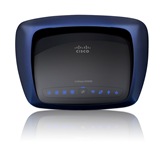
wndr3700 e3000

Here is a direct feature-by-feature comparison between these two behemoths of the wireless networking world. We also have the actual numbers produced by extensive testing done by Smallnetbuilder.com in the price/performance ratio row. As you can see they are very close in almost every area. In the price/performance category you have to give the edge to the Netgear WNDR3700. I personally chose the Netgear because of it’s processor power, sleek looks and customer satisfaction ratings. You be the judge.


Netgear WNDR3700 Dual Band Wireless-N Gigabit Router

Lowest price: $ 135
Linksys E3000 High Performance Wireless-N Gigabit Router

Lowest price: $ 112
Dual-band Yes Yes
*Price/Performance
Ratio
$135/*41.5Mbps $112/*33.8Mbps
Bridging/Repeating (WDS) Yes No
Wi-Fi Protected Setup Yes Yes
WAN 10/100/1000 (1) 10/100/1000 (1)
LAN 10/100/1000 (4) 10/100/1000 (4)
Processor 680 MH 480 MHz 
RAM 32 MB 64 MB 
Flash 8 MB 8 MB
Switch 4 port Gigabit 4 port Gigabit 
WLAN Atheros XSPAN Dual-band, dual radio 802.11n 
QoS Yes Yes
VPN Endpoint No No
Other Features ~ Wireless Guest Networks
~ Internet bandwidth metering
~ USB port for NAS or flash drives
~ Cisco Connect software on CD
~ Guest WLAN and parental controls (Only with Cisco Connect)
*Statistics provided by Smallnetbuilder.com *Average of six different locations in a two story home ranging from 6 to 65 feet away.
The Linksys WNDR3700 is still one of the best gaming routers on the market. It was one of the first wireless routers to be designed specifically for multimedia streaming and gaming. It has since been replaced with the WNDR37AV. Actually the AV is the same hardware with a new name and marketing campaign. Of interest to those in the gaming community is the new WNDR4500 which truly takes gaming performance to the next level. When shopping for the best router for gaming you want to consider gigabit switch ports, QOS or Quality Of Service, Additional RAM and processor power and dual bands. These are all important considerations when looking for the best router for gaming.

Sunday, January 9, 2011

Netgear WNDR3700 Dual Band Wireless Router

wndr3700_thumb1Click Here To Get Up To 30% Off On The Netgear WNDR3700!
Performance 5star_thumb_thumb_thumb
Ease Of Use 5star_thumb1_thumb_thumb
Price 3star_thumb_thumb_thumb
Customer Satisfaction 4star_thumb1_thumb_thumb

Looking For The Ultimate Networking Machine?

In terms of sheer performance the NETGEAR WNDR3700 leaves other wireless-N routers in its dust. Both the WNDR3700 and WNDR37AV were designed for those who demand far more performance than what is available from your average Wireless-G or Wireless-N wireless router.

If you've been struggling to find a router that offers jitter-free HD video streaming and lag-free gaming this router was designed for you. Large file transfers are a snap with the 300Gbps per band and gigabit wire Ethernet ports.

Oh and let’s not forget the convenient USB port which allow you to effortlessly share media files on most memory sticks to all the computers on your wireless network!

I found the ReadySHARE USB port works flawlessly on both wired and wireless connections and is faster and easier then the same implementation on other routers. This port works best with memory sticks. Portable USB hard drives will work but not quite as fast.


Get It Cheapest On Amazon Through This Link


Why Dual Bands?

Use the 5GHZ band as dedicated video network for gaming and streaming high-quality HD video.

Use the 2.4GHZ band for uninterrupted surfing, printing and file sharing

Now you can max out both high speed Wireless-N networks simultaneously without interfering with each other!


The Netgear WNDR3700 is great for:
  • Serious gamers
  • Small businesses
  • Anyone who requires the highest level performance from their wireless network.
Pros
  • Fast wired and wireless connection speeds.
  • Dual bands for ultimate in flexibility.
  • USB port for media sharing.
  • Easy setup.
Cons
  • No VPN pass through support
  • Minor guest network issues
  • Pricey but worth it.

Why They Call It The “Ultimate Networking Machine”

  • Power - The most powerful processor (680 MHZ) of any consumer router on the market enables you to run just about any game or application you want on your home network with ease.
  • Speed – Wireless-N (300Mbps) speed for streaming HD videos, simultaneous downloads, and online gaming.
  • Dual Bands - Run games and video on one band while simultaneously surfing and printing on the other without interference.
  • Storage - Use the built USB port to share out music, video and other files to all computers on your wireless network.
  • Gigabit – Four ultra fast gigabit ports for your wired connections.
  • Security – Enterprise level security and a guest network
  • Easy Setup - WPS “push button” setup can have you up and running in minutes.
Get Up To 30% Off On The Netgear WNDR3700 Through This Link

Sunday, December 26, 2010

Shopping For A New Wireless Router?

When looking for a new wireless router forget the latest trends, buzzwords or whiz bang features in all the advertisements. Otherwise you may end up paying for features you'll never need. Your focus should to be on how you expect to use your wireless home network. Start by recognizing which type of wireless network user you are.

Network users generally fall into one of three categories:
  1. Surfers
  2. Streamers
  3. Gamers
Surfers

Surfers generally do not put a big demand on a wireless network. They simply want to sit comfortably in a remote location on the couch or by the pool, surf the web, send emails and print out a document or two every once in a while. A basic Wireless G router is more than sufficient for this type of network user. Wireless-G (Max 108 MB per second) routers and adapters are inexpensive and backward-compatible with wireless N. 


Streamers

While streamers do their fair share of surfing they are mostly into sharing files from computer to computer. They spend a lot of time searching for and downloading large movie, music and video files to a central computer and streaming out to multiple PCs on the network. Video and multimedia files put a heavy load on a wireless network and should not be interfered with by other activities.

The best type of wireless router for Streamers is a wireless n router (Max 320MB per second) which uses MIMO (Multiple antennas) to fill the room with a signal that seemingly comes in from all directions. Many wireless N routers also have a features called QOS which allows you to optimize your network for video.

Gamers

Many Gamers feel the only useful purpose for a computer is running the latest games and hanging out in chat rooms with their friends. Games are timing sensitive applications which need the fastest, strongest signal possible to run without lag or hanging.

Gamers can typically be found in close proximity to other Surfers and Streamers who can easily become frustrated about the lack of bandwidth left over by Gamers. The type of wireless router needed in a household filled with Gamers, Surfers and Streamers far exceeds the capabilities of your typical wireless G or even N router.


The best type of wireless router for this household is a dual band wireless router which allows you to run two totally different networks from the same router. Dual band routers allow you to run your networks on totally different frequency bands to keep them from interfering with or "stepping on" each other.


Dual Bands

You can set up your dual band wireless router as follows:

SSID #1 2.47 GHZ Band. (Wireless G, N) Surfing, printing and file sharing.

SSID #2 5 GHZ Band. (Wireless N, A) Gaming and video, music streaming.

Of course a dual band router is much more expensive than a wireless-G or wireless-N router but they are coming down in price. If you,your friends and family are serious about getting the most you can from a wireless network a dual band wireless router is the way to go.

Wireless Security

Another consideration when purchasing a wireless router is wireless network security. The types of wireless security do not vary from router to router but the way you set it up does. Most routers come with the traditional setup CD which you can pop in and follow and hopefully end up with a secure wireless connection. A new feature called WPS or Wireless Protected Setup is designed to make setting up security even easier for consumers. It involves simply typing in an 8 digit pin or pressing a button to activate. Your wireless security parameters are then automatically generated for you. There are minor caveats involved with WPS and the way it works on networks that have been set up in more traditional methods. So a good understanding of setting up wireless security is still helpful but not always necessary.

Hopefully after reading this article you should know what to look for in a wireless router, what to avoid and what is best for you.

Monday, December 13, 2010

The Magic Of MAC Cloning

Many people excitedly rush home with their shiny new wireless router and follow the easy setup instructions to the tee only to be frustrated to find their Internet connection seems to disappear as soon as they plug in to their modem. Many times a simple setting on your router called MAC Cloning can fix this issue in about two minutes.

Many ISPs require your computer to have a certain computer name and MAC address in order to connect to their service. If you plug a different computer into your modem you may find you lose your Internet connection. This is a good indication that your ISP wants you to have a specific MAC address in order to access their service.

Since the MAC address on your router is different from the MAC address you had on your computer your ISP does not allow a connection unless you call them and tell them that you now have a different MAC address and ask them to reset your connection. This can involve a lot of wasted time on the phone with your ISPs Tech Support.

MAC address cloning is a feature that comes with most wired and wireless network routers. You can use it to duplicate or clone your computers MAC and computer name on to your router. Once this is done your ISP sees your router as being the same machine as your computer and allows a connection.

To access this feature you'll need to know the IP address of your router and the password to access the Web interface. Simply type this into your web browser to connect. Once you're in the Web interface you should be able to locate the MAC cloning feature without much difficulty. It usually involves simply typing in the MAC address and computer name of the computer you want to clone and clicking on a "clone" button. Some routers have a utility that enters a computers MAC for you when you type in that computer machine name.


To find your computers MAC address simply open a command prompt and type in "ipconfig /all" (Without the quotes). You will probably see several different sets of numbers depending on how many network adapters you have installed on that machine. You want to make sure you use the "physical address" of the local area connection you were using to connect to the modem.

Next time you purchase a new wireless or wired router and you find you're having problems connecting to the Internet be sure to try the MAC address cloning feature included on your router before a spending a lot of frustrating time on the phone with Tech Support.

J Richard Jones

Friday, October 8, 2010

Wireless Network Interference - Obvious And Not So Obvious Causes

If your wireless network is suffering from interference there's a chance there are both visible and invisible forces at work.  Here is an explaination of both.

Obvious Causes

Obviously any solid object is going to cause some difficulty for radio signal. Typically objects such as plaster, drywall and wood have little effect on wireless radio signals. On the other hand objects such as metal, concrete and glass can have a huge effect on your wireless signal. The human body which is made mostly of water can interfere greatly with a wireless signal. The absolute worst place to install a wireless router is an area that's full of metal objects such as a kitchen or laundry room. Strangely enough some wireless routers that are installed as part of the house during construction are surrounded by metal objects and are usually rendered useless.

Not So Obvious Causes

There are other types of wireless network interference that are not so obvious. If you live in an apartment building and are surrounded by neighbors who also have wireless devices in their apartments there's a good chance their wireless signals can be interfering with yours. An easy fix for this is to adjust the channel your wireless router is on. Wireless-G routers typically have 11 channels you can choose from. Most of these channels overlap with adjacent channels so if your neighbor is using channel 6 it's best to go with channel 1 or channel 11 on your wireless router. A lot of new wireless N routers and some G routers have an auto-switching feature which automatically detects the channel that's most open and switches to that.

A Wireless-G router basically lives on the 2.4 GHZ frequency band. Unfortunately a lot of your other wireless devices also occupy that frequency band. Microwave ovens, baby monitors, garage door openers and cordless phones also operate on the 2.4 GHZ frequency band and are capable of causing a lot of interference issues with your wireless router. It's best to keep your access point and your wireless devices at least 6 to 10 feet away from these devices.

As wireless technology becomes more mature interference is becoming less and less of a problem. We now have Wireless-N routers which enable us to use the 5 GHZ frequency band and avoid most of these interference issues altogether. Most Wireless-N routers and some Wireless-G routers use something called MIMO which sends and receives multiple signals at once and virtually floods the entire area with a wireless signal. This provides multiple paths for the wireless signal to follow which makes it less susceptible to interference.

If your wireless signal seems to work fine in some areas of the home and not in others you are probably experiencing interference issues. Make sure to check not only the most obvious and visible causes of interference but the not so obvious an invisible causes as well.

Hopefully this article has provided you with some insight into wireless interference, how to avoid it and what to do about it.

Understanding Wireless Home Networking Lingo

"Hi, My name is Dave your friendly yet somewhat annoying electronics store associate. So you're looking for a wireless router? What sort of wireless router are you looking for today sir? Wireless G? Wireless N? Dual band or single? Are you looking for MIMO or wireless A for your games? Have you seen our new WPS models? Need some time to think? OK, I'll be over here by the printers if you need anything. My name is Dave."

Before finding yourself in the middle of a conversation like this and ending up paying for a wireless router with features you don't need its best to walk into a store knowing what you already want and what all those acronyms mean.

Five minutes from now you will.

A, B, G or N? 

Wireless-A, B, G and N are all variations of the same 802.11X wireless protocol. Wireless-B was the earliest and is now considered outdated with the speed of only 11 megabits per second. Way too slow by todays standards. Having Wireless-B gear on a wireless-G network can actually slow other devices on that network to wireless-B speeds.

Next came Wireless-G and the rise in popularity of wireless networking. Wireless-G comes with far better security and a maximum speed of 54 megabits per second. Proprietary standards created by manufacturer's have doubled this to 108 megabits per second. Still even with this major increase in speed consumer interest in games and streaming multimedia created a need for an even faster wireless networking standard. Today we have a wireless-N routers which can reach speeds of up to 320 megabits per second.

The old Wireless-A standard had one redeeming feature. That was the fact that instead of running on the 2.4 gigahertz frequency band along with other wireless routers and popular wireless products such as cordless phones and baby monitors it ran relatively free of interference on the 5 gigahertz frequency band. Today wireless-N will run on both the 2.4 and 5 gigahertz frequency bands. The option to use the 5 gigahertz frequency band allows us much more flexibility when trying to avoid interference from other wireless devices.

What is MIMO?

The government only allows a home networks wireless signal to reach a certain strength to prevent it from interfering with other broadcast frequencies. This makes the wireless protocol susceptible to different types of interference. A way of overcoming this interference is with the use of multiple input and output antennas called MIMO. MIMO actually uses the surfaces of a room to reflect off of and in effect increase a wireless routers signal strength.

Encryption - Good, Better and Best

The types of security available on a wireless router usually come in three flavors. WEP, WPA and WPA2. WEP was first introduced with 802.11 B. with the increase of computer processing speeds encryption in WEP has become easier and easier to crack. WPA uses encryption keys that are constantly changing which makes it very difficult to crack. WPA two uses a different type of encryption method called AES which makes it even more difficult to crack and WPA.

WPS - So Easy A 10 Year Old Can Do It?

In order to make setting up wireless security easier for consumers a new feature called WPS or "Wireless Protected Setup" has been developed. WPS makes setting up wireless encryption easy and has even been incorporated into the new Windows 7 operating system. WPS involves simply typing in a pin number or pressing a button. If both the wireless router and a device you're connecting to support WPS your encryption type and security key is randomly generated automatically for you on both devices. In theory this makes setting up a wireless network so simple even a 10-year-old can do it. (Whether that's a good idea are not still remains to be seen).

Hopefully this brief article has given you a better understanding as to what all those confusing letters and acronyms associated with wireless networking mean. When Dave approaches you and asks if you need any help you should be able to say "No thanks." and walk out with exactly what you came in for.

Drama Free Wireless Network Troubleshooting

If you're like most people can you make it through running the set up CD flawlessly. You don't really run into any problems until later when you need to add new PCs, a wireless printer, game console etc to your wireless network. All of a sudden nothing you try seems to work. It's easy to get upset at this point. I've been there many times. What's important is to resist the temptation to throw your router and all your network gear out the window. Instead approach the problem with a cool head and follow a methodical series of troubleshooting steps.

SSID

Did you type in the correct SSID? On all your network devices? This is a very common and easy mistake to make because the SSID field is case-sensitive. As far as your wireless devices are concerned "MyWifi" and "MyWiFi" are two totally different networks.

Security Key

Make sure the security key you entered into your WEP, WPA or WPA2 setting is correct. This is especially true when you're using WEP and Windows XP. When using WEP you need to understand the difference between your pass phrase and WEP key. They are two different things. Normally you enter your pass phrase into your router and it's automatically converted into a hexadecimal WEP key. Many people make the mistake of typing that same pass phrase into your Windows XP wireless adapter properties. XP will not automatically convert a pass phrase to a WEP key like your router does. You need to type in the actual hexadecimal WEP key into your Windows XP wireless adapter properties otherwise it won't work even though you're certain you entered it correctly.

Hidden SSID

Check to make sure you are broadcasting your SSID. Many people like to hide their SSID as a security measure but this can make connecting new devices to a wireless network difficult.

MAC Address Filtering

If you're using Mac address filtering check your MAC address settings. Many times we'll go through the trouble of setting up MAC address filtering and then forget all about it. Later when associating a new device or wireless adapter to the network we go through the steps of setting everything up correctly and nothing seems to work. I've done this myself several times. Usually some random thought will cause me to remember I had MAC address filtering set up. Once I turn it off my new device suddenly works like magic. It's then just a simple matter of adding that new devices MAC address to our MAC filter and turning it back on again.

Drivers and Updates

Personally I hate this but I've found it's a necessary evil. It's a good practice to occasionally wander out to your wireless device manufacturers website and see if there are any new firmware or device driver updates available. Manufacturers will often add new features and functionality as well as fix many problems with updates.Of course the question that always comes to mind is: "It worked fine before so why not now?" One reason for this is there may have been changes or upgrades made to your Operating System or service pack level. Now all of a sudden things no longer work because the new Service Pack on your system requires features your device doesn't have without a firmware or device driver upgrade.

If all the previously mentioned troubleshooting steps don't work it's time to go to your manufactures website and make sure you have the latest device drivers and firmware upgrades for your equipment.

Faulty Equipment

There comes a time when it's a good idea to stop beating your head against a wall and blaming yourself. The sad truth about wireless networking gear is in order to make such sophisticated equipment affordable to consumers certain quality control steps can be skipped or eliminated in order to streamline and economize their production. Thats why it's always a good idea to purchase wireless gear from reputable merchant with a good return policy and keep your receipts.

Testing "Known Good" Devices

The question is how do you determine when something is bad or not? Now is a good time to save your routers configuration settings to a file and reset it to its original factory configuration. This is typically done by inserting a pin or paper clip into a small hole on one side of the device, holding it for a few seconds and then power cycling (Turning it off and back on again.) the router. Many routers make this easy with a reset button you can click on in the web interface. If the issue is resolved after you reset it you know the router is good. There may have been a conflict with some of the settings you added or the configuration file may have simply become corrupt. If the issue is not resolved you either have a bad router or one of the devices you're connecting to may be bad or mis-configured. Swap out other devices on your network with "known good" devices. If a device you know is good is still not working you may have a problem with your router.

See now don't you feel better? Resisting the instant gratification of smashing an evil piece of hardware that seems intent on making your life miserable can result in long term financial and emotional peace of mind.

JJ